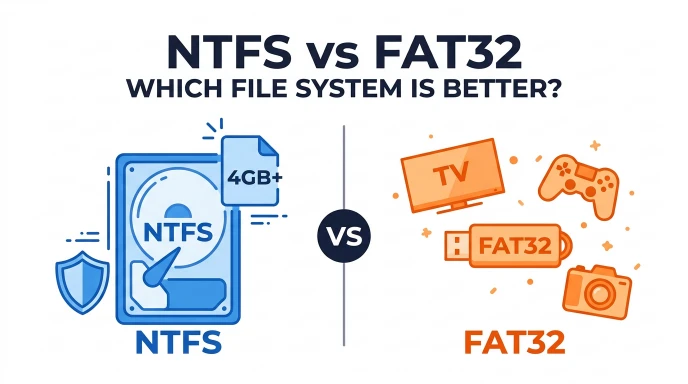
NTFS is better for modern Windows computers and large files over 4 GB, while FAT32 is better for small USB drives and devices like TVs, game consoles, and cameras that need wide compatibility.
A file system decides how your drive stores, organizes, and retrieves data. Choosing the wrong one can block you from copying a large video file or leave your data without basic protection.
NTFS, short for New Technology File System, was introduced by Microsoft and is the default for Windows. It handles files larger than 4 GB, supports encryption and permissions, and recovers well after a crash. FAT32 is older and limits each file to 4 GB, but game consoles, smart TVs, cameras, and Android devices read it without trouble.
This guide compares NTFS and FAT32 on speed, file size limits, security, and device support. By the end, you will know which one suits your USB drive, external hard disk, or Windows partition.
NTFS vs FAT32: Featured Snippet Answer
this systems used to organize and store files on storage devices. NTFS supports individual files larger than 4 GB, offers file permissions and journaling, and works well with Windows. FAT32 provides wider compatibility with older devices, but it cannot store a single file larger than 4 GB. Choose NTFS for Windows storage and FAT32 when device compatibility is the priority.
NTFS vs FAT32: Quick Answer
The main difference between NTFS and FAT32 is their file size limits, features, and compatibility.
- Choose NTFS for Windows installations, internal drives, large files, and advanced security features.
- Choose FAT32 for older devices, small files, and devices that specifically require FAT32.
- Consider exFAT if you need to transfer large files between Windows and macOS or use external storage with multiple compatible devices.
For most modern Windows computers, NTFS is the practical default. For USB drives that need to work with different devices, check the supported file systems before formatting.
What Does NTFS Mean?
NTFS stands for New Technology File System. Microsoft introduced it with Windows NT in 1993.
NTFS is the standard file system for modern Windows system drives. It helps the operating system store files, manage folders, control access, and recover from certain file-system errors.
Main Features of NTFS
NTFS offers several useful features:
- Large file support: It supports individual files larger than 4 GB.
- File permissions: Windows can restrict who reads, changes, or opens particular files.
- Journaling: It records file-system changes to help recover from certain interruptions.
- Compression: Windows supports NTFS file compression in applicable situations.
- Encryption: Windows supports file encryption through features such as Encrypting File System on eligible editions and configurations.
- Large storage support: NTFS supports much larger volumes than typical FAT32 implementations.
These features make NTFS suitable for operating systems, applications, professional work, backups, and large media files.
When Should You Use NTFS?
NTFS is a strong choice when you:
- Install Windows on an internal SSD or hard drive.
- Store video files larger than 4 GB.
- Work with large software projects.
- Need Windows file permissions.
- Use an external hard drive mainly with Windows computers.
However, NTFS does not work equally well with every device. Some televisions, cameras, gaming consoles, and other electronics may not support it, or they may support it only for certain functions.
What Does FAT32 Mean?
FAT32 stands for File Allocation Table 32. It is an older file system introduced with Windows 95 OSR2 in 1996.
FAT32 organizes data using a file allocation table that tracks where files are stored on a drive. Although it lacks many modern NTFS features, its broad device support keeps it useful.
Main Features of FAT32
FAT32 offers these benefits:
- Broad compatibility: Many older computers and electronic devices support it.
- Simple structure: It has fewer advanced features than NTFS.
- USB support: It is useful for flash drives that must work with compatible older devices.
- Cross-platform use: Windows, macOS, and many other systems can read and write FAT32 volumes.
Its biggest limitation is the maximum size of an individual file. FAT32 cannot store a single file that is 4 GB or larger. The precise maximum is 4 GiB minus one byte, which is slightly less than 4 GB when measured in decimal units.
When Should You Use FAT32?
FAT32 may be appropriate when you:
- Need compatibility with an older device.
- Transfer small files between supported systems.
- Use equipment that explicitly requires FAT32.
- Prepare storage for a device whose instructions specify FAT32.
Before formatting a USB drive for a television, camera, console, or other device, check its manual. Some devices require a particular file system or partition layout.
NTFS vs FAT32: Main Differences
The following table compares their most important characteristics.
| Feature | NTFS | FAT32 |
| Full form | New Technology File System | File Allocation Table 32 |
| Maximum individual file size | Much larger than 4 GB | Just under 4 GiB |
| Maximum volume size | Supports very large volumes | Common implementations and tools impose limits |
| Windows support | Excellent | Excellent |
| macOS support | Usually read-only by default | Read and write support |
| File permissions | Supported | Not supported in the same way |
| Journaling | Supported | Not supported |
| Built-in file compression | Supported | Not supported |
| Security features | Advanced features available | Limited |
| Older device compatibility | Varies by device | Often broader |
| Best use | Windows drives and large files | Compatible older devices and smaller files |
Actual volume limits depend on the operating system, formatting utility, implementation, and device. The table describes general differences rather than a guarantee for every device.
Which File System Has the Better File Size Limit?
NTFS wins when you need to store large individual files.
For example, suppose you want to copy a 7 GB video to a USB drive. A FAT32-formatted drive will reject the file because it exceeds FAT32’s individual file size limit. An NTFS-formatted drive can store it, provided enough free space is available.
This limitation applies to each individual file, not the total size of all files on the drive. A FAT32 drive can contain many files whose combined size exceeds 4 GB.
Which File System Is More Secure?
NTFS offers more advanced security and file-management features. Windows can use NTFS permissions to control access to files and folders, and certain Windows configurations support encryption.
FAT32 does not provide equivalent built-in file permissions or journaling.
However, choosing NTFS does not automatically encrypt every file or protect a drive from every threat. Security depends on your settings, encryption tools, account permissions, and physical access to the device.
NTFS vs FAT32 for USB Drives
The best file system for a USB drive depends on which devices will use it.
Choose NTFS for Windows-Only USB Storage
NTFS is useful if you regularly transfer large files between Windows computers.
For example, a USB drive used to carry video projects, software installers, or large backups may benefit from NTFS. It avoids FAT32’s 4 GB individual file limit and supports advanced Windows features.
The main drawback is that some non-Windows devices cannot write to NTFS drives or may not recognize them.
Choose FAT32 for Compatible Older Devices
FAT32 can be a better option if your USB drive needs to work with older equipment that supports FAT32 but not NTFS.
Examples may include older televisions, car audio systems, cameras, and other electronics. Compatibility varies by model, so check the manufacturer’s requirements first.
What About exFAT?
If you need a USB drive for both Windows and macOS and want to store large files, exFAT is often worth considering.
| Use case | Recommended file system | Reason |
| Windows system drive | NTFS | Windows features and reliability |
| Windows-only USB drive with large files | NTFS | Supports files larger than 4 GB |
| Older device requiring FAT32 | FAT32 | Meets the device’s requirements |
| USB drive shared between Windows and macOS | exFAT | Broad modern support and large-file support |
| Device with a specific format requirement | Required format | Ensures device compatibility |
exFAT is not supported by every device, either. Always check compatibility before formatting.
NTFS vs FAT32 for Gaming and External Hard Drives
Which Is Better for Gaming?
The answer depends on the gaming system.
For a Windows gaming PC, NTFS is generally the preferred choice for Windows system storage and many game libraries. It supports large files and works with standard Windows storage features.
For a PlayStation, Xbox, or another console, follow the console manufacturer’s instructions. External storage requirements can vary by console generation, use case, and software version.
Some consoles support specific formats for media playback, while game storage may require a different format or setup. Do not assume that FAT32 or NTFS will work for every console.
Which Is Better for External Hard Drives?
NTFS is usually the better choice for an external hard drive that will remain connected to Windows computers. It supports large files and offers useful file-management features.
FAT32 may be more suitable when an older device specifically requires it.
If you want to use the same external drive with Windows and macOS, exFAT may be a more practical option than NTFS or FAT32, provided both systems and any other connected devices support it.
Common Mistakes When Choosing NTFS or FAT32
Mistake 1: Assuming FAT32 Supports Every File Size
FAT32 does not support an individual file of 4 GB or larger. A drive can have plenty of free space and still reject a large video or archive.
Better approach: Use NTFS or exFAT when the target device supports it and you need to store large files.
Mistake 2: Assuming NTFS Works on Every Device
Some televisions, media players, cameras, and other electronics may not recognize NTFS storage.
Better approach: Read the device manual or check its official support documentation before formatting the drive.
Mistake 3: Formatting Without Backing Up Data
Formatting a drive can erase its contents. Choosing a different file system may require reformatting, which can remove stored files.
Better approach: Copy important files to another safe location before formatting. Confirm that the backup opens correctly.
Mistake 4: Confusing File Size With Drive Size
FAT32’s 4 GB restriction applies to a single file, not the total contents of the drive.
For instance, a FAT32 drive can store hundreds of small photos whose combined size is 10 GB, as long as each individual file remains within the file size limit and the drive has enough capacity.
Everyday Examples: Which Format Should You Choose?
Here are practical situations to help you make the right choice.
| Situation | Best choice | Explanation |
| Installing Windows on an SSD | NTFS | Standard choice for Windows system storage |
| Copying a 10 GB video to a supported drive | NTFS or exFAT | FAT32 cannot store the individual file |
| Using an old television that requires FAT32 | FAT32 | Follows the device’s requirements |
| Sharing files between Windows and modern Mac computers | exFAT | Usually offers convenient cross-platform access |
| Saving documents on a Windows-only external drive | NTFS | Useful Windows features and broad file-size support |
| Formatting a device for a specific console | Manufacturer-specified format | Requirements differ by system and function |
Can You Convert FAT32 to NTFS Without Losing Files?
Windows includes a command-line conversion method for certain FAT or FAT32 volumes, using the convert command. This can convert a compatible volume to NTFS without the normal process of formatting it.
However, conversion is not a substitute for a backup. Problems, interruptions, or other storage issues can still cause data loss. Also, converting a drive to NTFS may reduce its compatibility with devices that only support FAT32.
If you need to change a drive’s file system, back up important data first and follow Microsoft’s official instructions.
Google Trends and Modern Usage
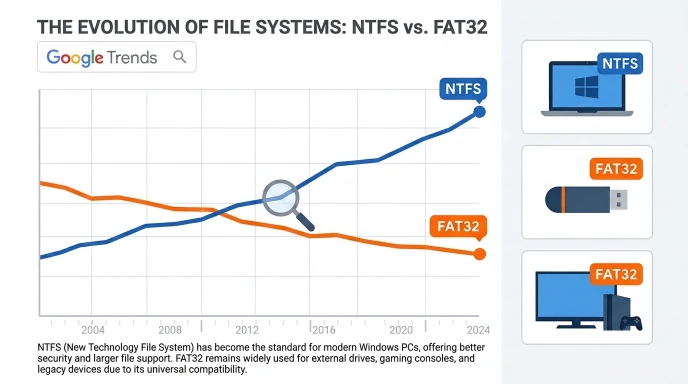
People search for NTFS vs FAT32 when formatting USB drives, transferring large files, troubleshooting compatibility issues, or preparing storage for computers and electronics.
Common questions include if FAT32 is faster, if NTFS works on macOS, and which file system supports large files.
There is no single best format for every situation. The practical decision usually comes down to three factors:
- File size: FAT32 cannot store an individual file of 4 GB or larger.
- Compatibility: FAT32 is supported by many older devices, but support is not universal.
- Features: NTFS offers advanced Windows file-management and security capabilities.
Exact search popularity changes over time and by region. Without current, verified Google Trends data, it would be misleading to claim that one of these terms has a specific search volume or growth rate.
NTFS vs FAT32: Key Takeaways
- NTFS stands for New Technology File System.
- FAT32 stands for File Allocation Table 32.
- NTFS is generally the better choice for Windows system drives.
- FAT32 cannot store a single file of 4 GB or larger.
- FAT32 may offer better compatibility with some older devices.
- NTFS supports journaling and advanced file permissions.
- exFAT is often useful for large files shared between compatible Windows and macOS systems.
- Always back up your files and check device requirements before formatting.
FAQs
1. Is NTFS better than FAT32?
NTFS is generally better for Windows system drives, large files, and advanced file-management features. FAT32 can be better when you need compatibility with an older device that does not support NTFS. Your choice should depend on the storage device, operating system, file sizes, and intended use.
2. Is FAT32 faster than NTFS?
Neither file system is always faster. Performance depends on the device, operating system, file sizes, workload, and implementation. FAT32’s simpler design does not guarantee better performance, and NTFS may perform better for some workloads. For everyday use, compatibility and file size limits are often more important than small performance differences.
3. Can FAT32 store files larger than 4 GB?
No. FAT32 cannot store an individual file that reaches or exceeds its maximum size of 4 GiB. You can store multiple smaller files whose combined size is much larger than 4 GB. If you need to store a large video or archive, choose a compatible file system such as NTFS or exFAT.
4. Does Windows support FAT32 and NTFS?
Yes. Windows supports both file systems. NTFS is the standard choice for modern Windows system drives, while FAT32 remains useful for compatible removable storage. Windows formatting tools may limit the FAT32 volume sizes they allow you to create, even though FAT32’s theoretical volume capacity differs from those tool limits.
5. Can macOS read NTFS drives?
macOS generally supports reading NTFS drives but does not provide standard native NTFS write support by default. Third-party software may enable writing. FAT32 and exFAT offer read-and-write support on macOS when the drive and operating system are compatible, making exFAT useful for many cross-platform storage needs.
6. Should I format my USB drive as FAT32 or NTFS?
Choose FAT32 if the device you plan to use requires or specifically supports FAT32 and your files fit within its limits. Choose NTFS if you mainly use the USB drive with Windows and need to store large files. For cross-platform transfers, consider exFAT if all your devices support it.
Conclusion:
The choice between NTFS and FAT32 depends on how you plan to use your storage device. NTFS is generally the best option for Windows system drives, large files, and storage that benefits from advanced file permissions and journaling. FAT32 remains useful for older electronics and other devices that specifically require it.
Remember the main limitation: FAT32 cannot store a single file of 4 GB or larger. If you need to transfer large videos, archives, or other files between compatible modern computers, exFAT may be a better alternative.
Before formatting a USB drive or external hard drive, check the supported file systems for every device you plan to use. Back up important data before making changes, because formatting can erase files.
The simple rule is this: choose NTFS for Windows-focused storage, FAT32 for compatible devices that require it, and consider exFAT for cross-platform transfers involving large files.
If this guide helped you choose a file system, share it with someone who is setting up a USB drive or external hard drive.
Further Reading!

I’m Daniel Carter, a language writer and grammar enthusiast who enjoys making English simple and easy to understand. I write about grammar, spelling, word usage, and common mistakes to help readers use English with more confidence.




1 thought on “NTFS vs FAT32: Which File System Is Better?”